Setting Up OpenVPN
VPN (Virtual Private Network) is a technology that creates a safe and encrypted connection over a less secure network, such as the Internet. It makes use of tunneling protocols to establish a secure connection.
Local administrator rights are required for installing OpenVPN. You can learn what type of account you have by following the instructions on the Microsoft site.
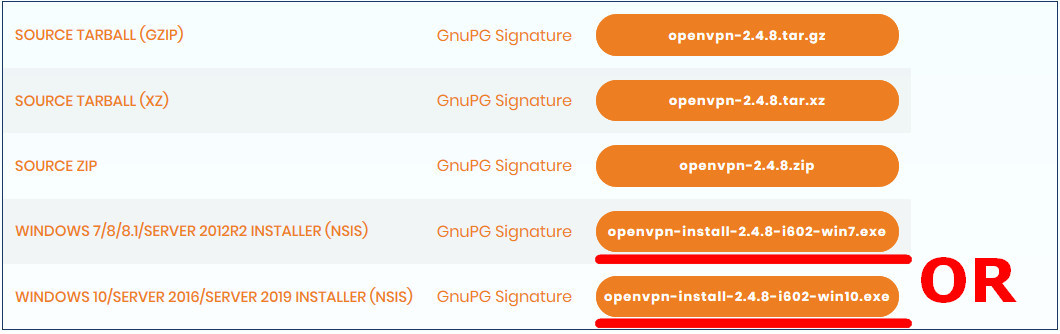
- Go to OpenVPN community-downloads official website.
- Find the required version and below it click on the button at the end of the line for the required installation package.
- In the opened dialog click “Save”.
- Open the folder where the installation package was downloaded to and run it.
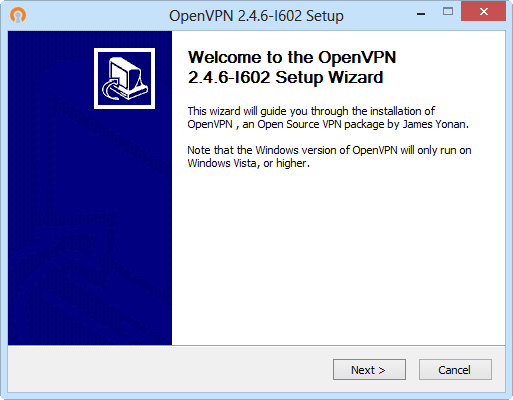
- On the welcome installation wizard page click “Next>”.
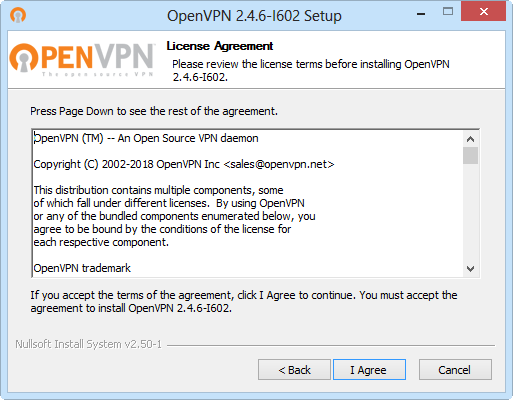
- Accept terms of license by clicking “I Agree”.
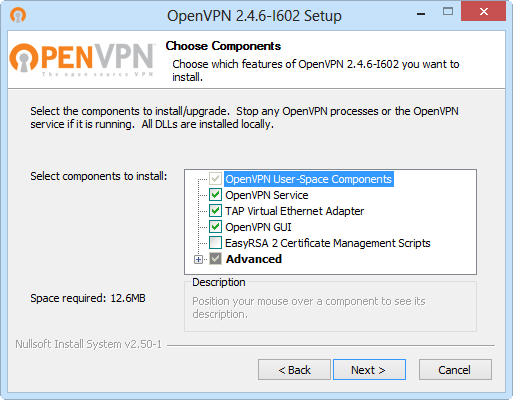
- Select which components are to be installed and click “Next>”.
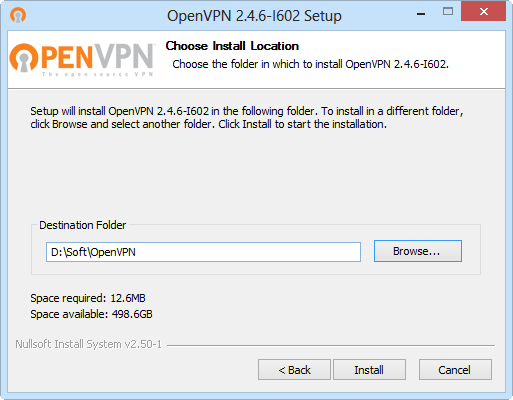
- Specify folder for OpenVPN, click “Install”.
- When installation is complete, click “Next>”.
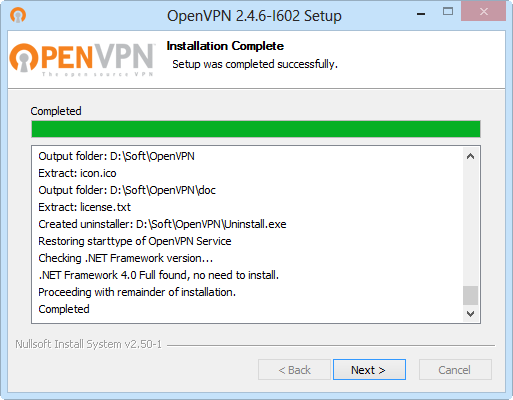
- Click “Finish”.
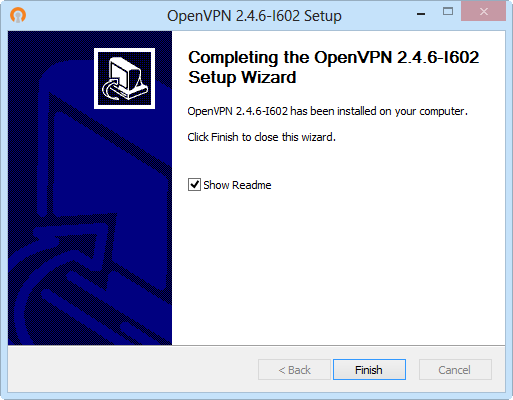
OpenVPN is successfully installed.
Configuring OpenVPN
Tutorial video
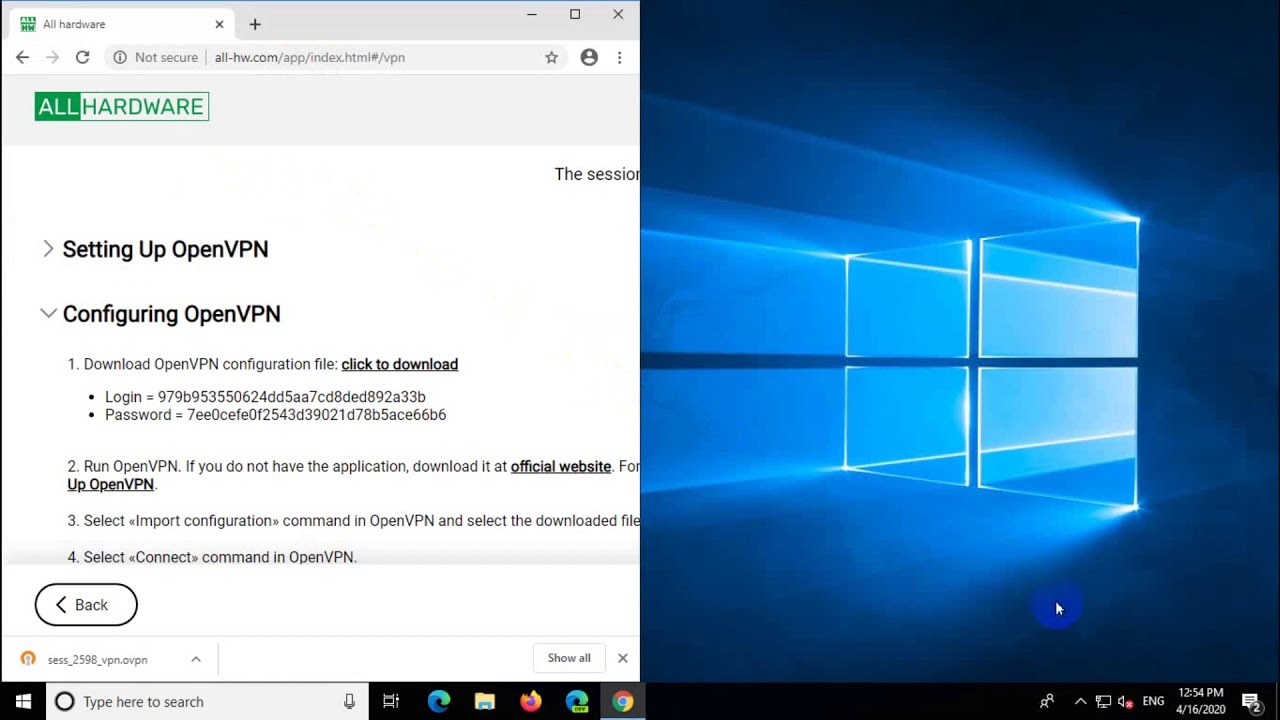
Instructions
- Download OpenVPN configuration file:
- Login = login
- Password = password
Link to OpenVPN configuration file, login and password are shown on the Connection and Tools page.
-
Run OpenVPN. If you do not have the application, download it at official website. For details see Setting Up OpenVPN.
-
Select “Import configuration” command in OpenVPN and select the downloaded file as configuration.
-
Select “Connect” command in OpenVPN.
-
In login dialog enter login and password.
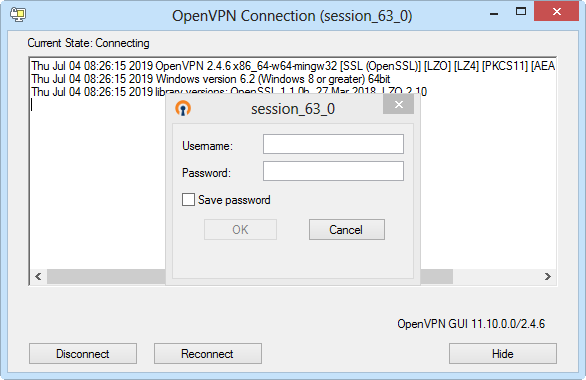
-
Click “OK”.
-
A message about successful connection will be displayed.